Overview
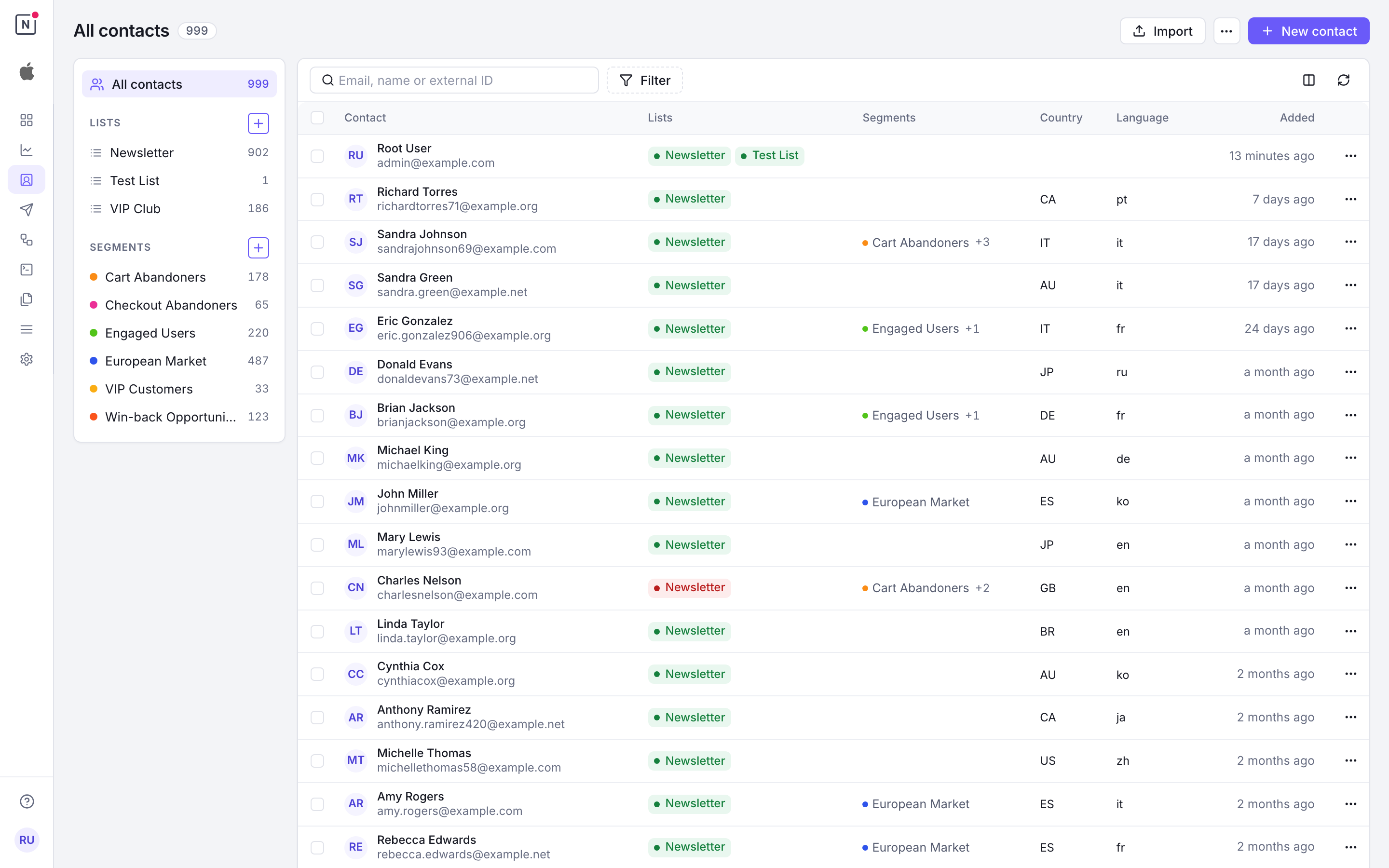
Contacts in Notifuse are comprehensive customer profiles that store subscriber information, preferences, and engagement data. They support flexible data storage through predefined fields and can be associated with multiple mailing lists.
Contact Fields
| Field | Type | Description |
|---|---|---|
email | String | Contact’s email address — the contact’s unique identifier (Required) |
external_id | String | Optional reference to the contact in your own system. Not unique — see Contact Identity |
first_name | String | Contact’s first name |
last_name | String | Contact’s last name |
phone | String | Phone number |
timezone | String | Contact’s ISO timezone |
language | String | Preferred language |
job_title | String | Professional title |
address_line_1 | String | Primary address |
address_line_2 | String | Secondary address (apartment, suite, etc.) |
country | String | Country ISO format |
state | String | State or province |
postcode | String | Postal/ZIP code |
custom_string_1 to custom_string_5 | String | Custom string fields |
custom_number_1 to custom_number_5 | Number | Custom number fields |
custom_datetime_1 to custom_datetime_5 | DateTime | Custom datetime fields |
custom_json_1 to custom_json_5 | JSON | Custom JSON fields |
tracking_opens_consent, tracking_clicks_consent | String | granted, denied or null (unknown): the contact’s choice about open and click tracking |
tracking_consent_updated_at, tracking_consent_source | DateTime, String | When and where that choice last changed |
The Contact Sheet
Clicking a contact in the table opens its sheet over the page. The sheet has its own address (the page’s URL with ?contact= and the email), so you can share it or come back to it. When you opened it from the table, the browser’s Back button closes it.
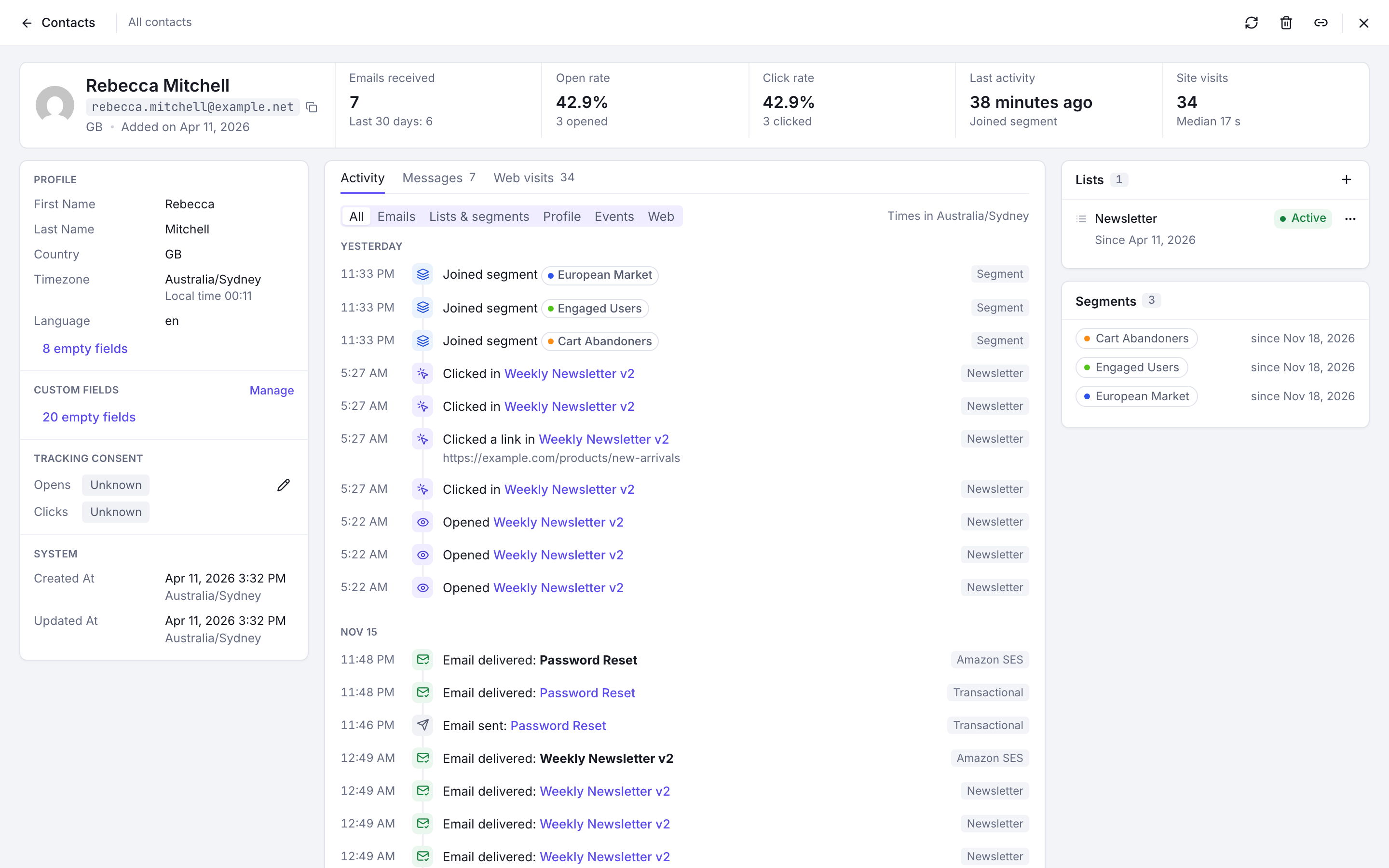
- Move through the table with the arrows at the top, or with J (next) and K (previous). The sheet walks the rows of the view you opened it from, in their order, and loads the next rows when you reach the last one.
- Edit a field by clicking its value. Empty fields are folded under a link at the bottom of each panel.
- Key figures: emails received, open and click rates, the last activity and, with web analytics on, site visits.
- Activity: the contact’s timeline, filtered by kind (emails, lists and segments, profile changes, events, web visits).
- Messages: the emails sent to the contact.
- Web visits: the contact’s visits to your website, when web analytics is on.
- Lists and segments: the contact’s subscriptions, which you can change, and the segments they belong to.

Contact Management
Contact Identity and Upsert Behavior
The email address is the unique identifier of a contact: it is the primary key in the database, and every upsert operation (contacts.upsert, contacts.import, and the contact embedded in transactional.send) matches contacts by email address only:
- New emails: Automatically creates a new contact
- Existing emails: Updates the existing contact with provided fields
- Null values: Setting any field to
nullremoves that value from the contact
external_id is an optional reference to the contact in your own system (for example, your application’s user ID). It is stored, searchable, and returned by the API, but it is not a unique key:
- It is never used to match contacts during upserts.
- Notifuse does not prevent several contacts from sharing the same
external_id. - If several contacts share the same
external_id,contacts.getByExternalIDreturns only one of them (which one is not defined).
Changing a Contact’s Email Address
Because the email address is the contact’s identity, upserting the same external_id with a new email address creates a second contact — it does not update the email of the existing one. When a user changes their email address in your system:
- Fetch the old contact with
contacts.getByEmailto retrieve its profile and its list subscriptions with their statuses. - Upsert a contact with the new email address, sending the full profile (upserts merge fields, so include every field you want to keep, such as
external_id, names, and custom fields). - Re-create the list subscriptions on the new contact with
lists.subscribe. - Delete the contact with the old email address using
contacts.delete.
Warning
Preserve opt-out statuses when re-creating subscriptions. If the old contact had unsubscribed, bounced, or complained on a list, do not re-subscribe the new email address to that list: the new contact starts with a clean slate, and blindly re-subscribing silently resets an opt-out — a consent violation (GDPR / CAN-SPAM) that can hurt your sender reputation.
Also keep in mind:
- Message history and segment memberships are keyed to the email address. They stay attached to the old email address and are not transferred to the new contact.
- Active automations: deleting the old contact drops it from any automation it is currently progressing through; the new contact does not resume its position.
Deleting a Contact
Deleting a contact with contacts.delete also deletes its list subscriptions, unsubscribed, bounced and complained statuses included, so Notifuse no longer remembers that the address opted out. A later import, upsert with subscribe_to_lists or lists.subscribe adds the address back as a new, subscribed contact. To keep honouring an opt-out, set the contact’s list status to unsubscribed instead of deleting it.
An unsubscribe link in an email sent before the deletion still answers successfully, but stores nothing about the address.
List Subscriptions
- Contacts can subscribe to one or multiple mailing lists
- Subscription status is managed per list
- List memberships are tracked through the
contact_listsrelationship
Contact Segmentation Engine
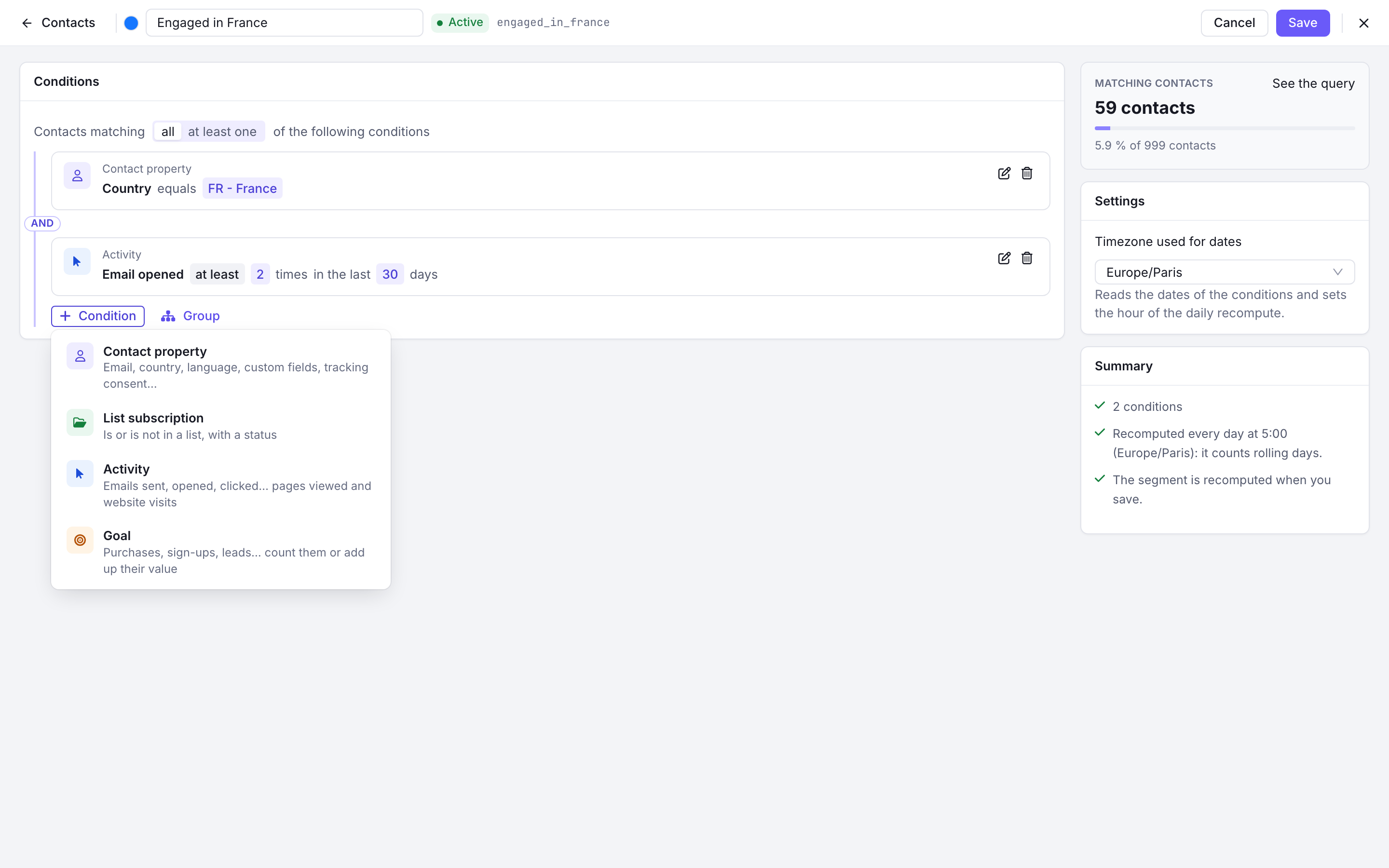
Notifuse includes a powerful real-time contact segmentation engine that allows you to create dynamic audience segments based on contact properties and engagement behavior. Segments automatically update as contact data changes, ensuring your targeting remains accurate and current.
Building Segments
Segments are built using a flexible condition system that supports:
Contact Property Conditions
Filter contacts based on their profile data using standard comparison operators:
- Text fields: email, names, phone, country, language, time zone, address, job title, tracking consent and its source, custom text fields. Operators: is set, is not set, equals, doesn’t equal, contains (one or several values), doesn’t contain.
- Number fields: custom number fields. Operators: is set, is not set, equals, doesn’t equal, greater or less than (or equal to).
- Date fields: created and updated dates, tracking consent date, custom date fields. Operators: is set, is not set, before, after, between, not between, in the last N days, not in the last N days (which also matches contacts whose date was never set).
- JSON fields: custom JSON fields, read at a path of keys and array indexes, as text, a number or a date. Text adds « is in the array »; a date offers before, after, equals and the last-N-days operators.
Several filters in one condition must all match. Each filter is edited in place, and a condition cannot be confirmed while one of its filters is unfinished.
Goal-Based Conditions
Build RFM (Recency, Frequency, Monetary) segments using Custom Events & Goals:
- Monetary: Total spend, average order value
- Frequency: Purchase count, event count
- Recency: Activity within a timeframe
Example segments: VIP customers (spent $1000+), repeat buyers (3+ orders), at-risk customers (no purchase in 90 days).
Activity-Based Conditions
Target contacts based on their engagement behavior with your emails and your website:
- Email sent: Contact was sent an email
- Email opened: Contact opened an email
- Email clicked: Contact clicked a link in an email, optionally a link whose address contains some text. A contact enters the segment as soon as they click that link in an email sent from version 42.2 on, even when it is not the first link they clicked in the email
- Email bounced: Email bounced for this contact
- Email complained: Contact marked an email as spam
- Unsubscribed from an email: Contact unsubscribed through an email
- View web page: Contact viewed a page on your website, filterable by path, time on page and scroll depth
- Visit website: Contact made a visit, filterable by entry and exit page, pages viewed, duration, channel, campaign, device and country
The two website conditions require Web Analytics and a visitor who has been identified.
Activity conditions support additional parameters:
- Frequency: at least, at most or exactly a number of times
- Timeframe: anytime, between two dates, before or after a date, or in the last N days
- Template and broadcast (every email activity, Email sent included): count only the emails sent with one template, or by one broadcast
- Clicked link (Email clicked): count only clicks on links containing some text, such as
/pricing
Condition Logic
Segments support both AND/OR logic for combining multiple conditions:
- All of the following conditions: Contact must match every condition (AND logic)
- At least one of the following conditions: Contact needs to match one condition or more (OR logic)
Conditions can be grouped, each group with its own « all » or « at least one », and groups can be nested.
Use Cases
Common segmentation scenarios include:
- VIP Customers: High spenders with multiple purchases (use goal-based conditions)
- Engagement Recovery: Re-engage inactive subscribers who haven’t opened emails in 90 days
- At-Risk Customers: Previously active buyers with no recent purchases
- Geographic Targeting: Send region-specific campaigns based on country or state
- Behavioral Triggers: Target users who clicked specific product links
Technical Details
The segmentation engine leverages contact timeline data introduced in version 7.0, which tracks all contact interactions including messages, webhook events, and profile mutations. Activity events include granular kind field types (e.g., email.opened, email.clicked, web.pageview) enabling precise behavioral targeting. All timestamps are stored in UTC timezone and can be evaluated in user-specified timezones for date-based conditions.
Segment Permissions
Segments have their own Segments permission: read lists segments and opens one, write creates, edits, deletes and rebuilds them, and runs, resets or deletes their background build tasks.
Previewing a segment while you build it, and listing the contacts a segment currently matches, additionally require the Contacts read permission — both answer questions about your contacts rather than about the segment definition. A member holding Segments read alone can work with segment definitions, but not see who is in them.
Preview accepts any definition sent to it, not just a saved segment. Someone holding Segments read together with Contacts read can therefore ask counting questions about any contact attribute, list membership, custom event or timeline entry, one count at a time.
Importing Contacts from CSV
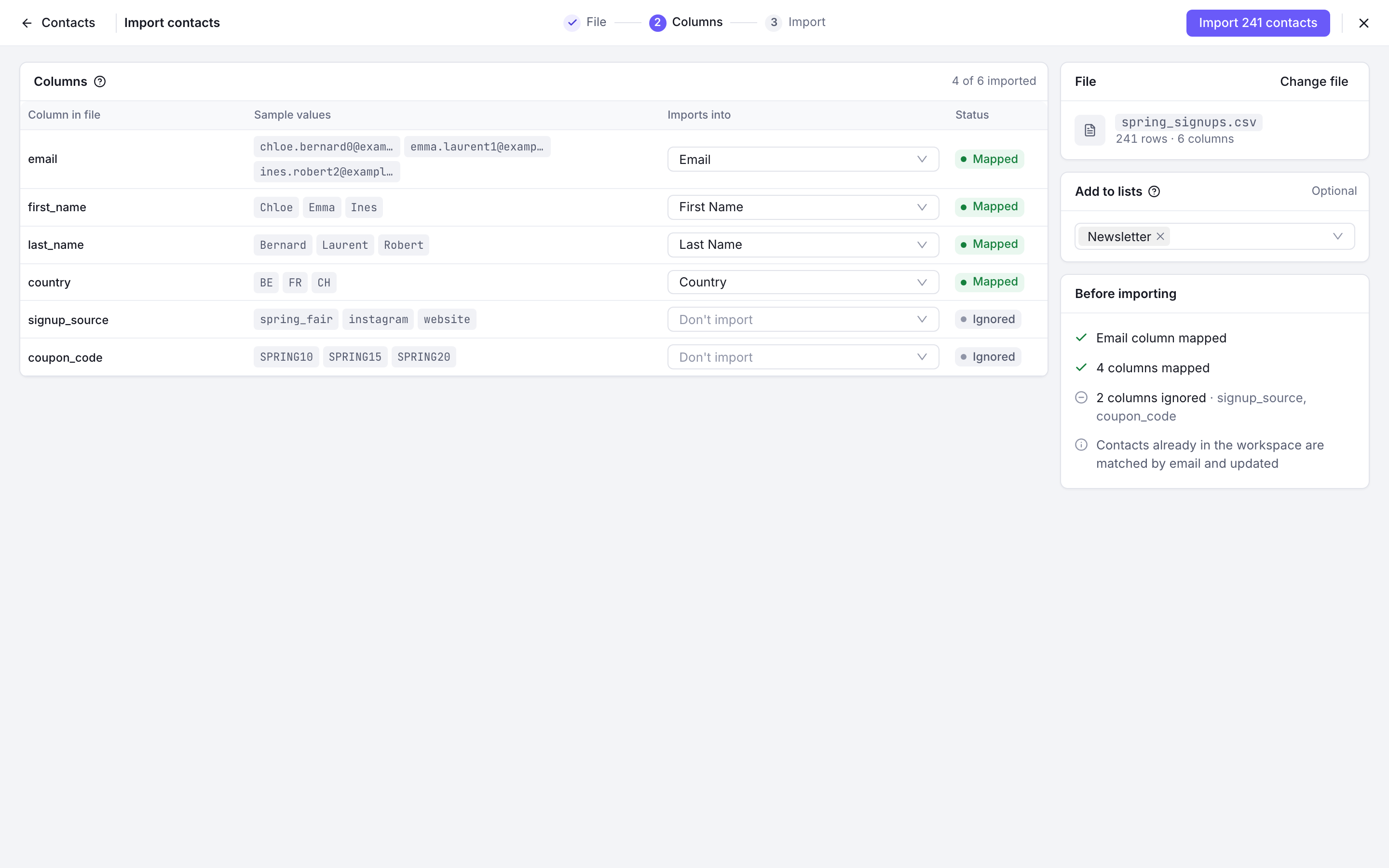
The import runs in three steps: drop a CSV file, map its columns, then follow the import.
Mapping the Columns
The first row of the file holds the column names, and one column must hold email addresses. Each column is shown with sample values from the first rows. A column named like a contact field, by its key (first_name) or its label (First Name), is mapped for you; you can map any column to a standard or custom field, or leave it on Don’t import. Each field takes one column, and the import stays disabled until a column is mapped to Email.
Consent columns take granted or denied, and custom JSON fields take valid JSON. A contact already in the workspace is matched by email and updated: every field the row carries overwrites the stored value.
Adding to Lists
You can pick one or several lists: every imported contact is subscribed to them.
Following the Import
Rows are sent in batches of 100, and the import counts the contacts created, updated and failed. Each failed row is listed with its line in your file and the reason; Download failed rows gives you those rows with an error column, to fix them and import them again.
The import runs in your browser. You can pause it or stop it; closing the drawer or the tab stops it too. The point it reached is kept in this browser for 7 days: the File step lists unfinished imports, and dropping the same file again offers to resume from the row where it stopped, with the same column mapping and lists.
Import Permissions
Importing needs the Contacts write permission. Selecting one or more mailing lists during the import needs Lists write as well.
Bear in mind what an import does: every field a row carries overwrites the stored value on the matching contact. A single import can rewrite your whole contact database, so treat Contacts write as that level of access rather than as “can add contacts”.
Bulk Update from CSV
Bulk update (CSV), in the ⋯ menu of the Contacts page, applies one action to every contact whose address is in a CSV column:
- Unsubscribe from a list sets the contacts’ subscription to that list to unsubscribed. They stay in the workspace and can subscribe again. A contact that is not in the list is skipped.
- Delete contacts removes the contacts and their history from the workspace. This cannot be undone.
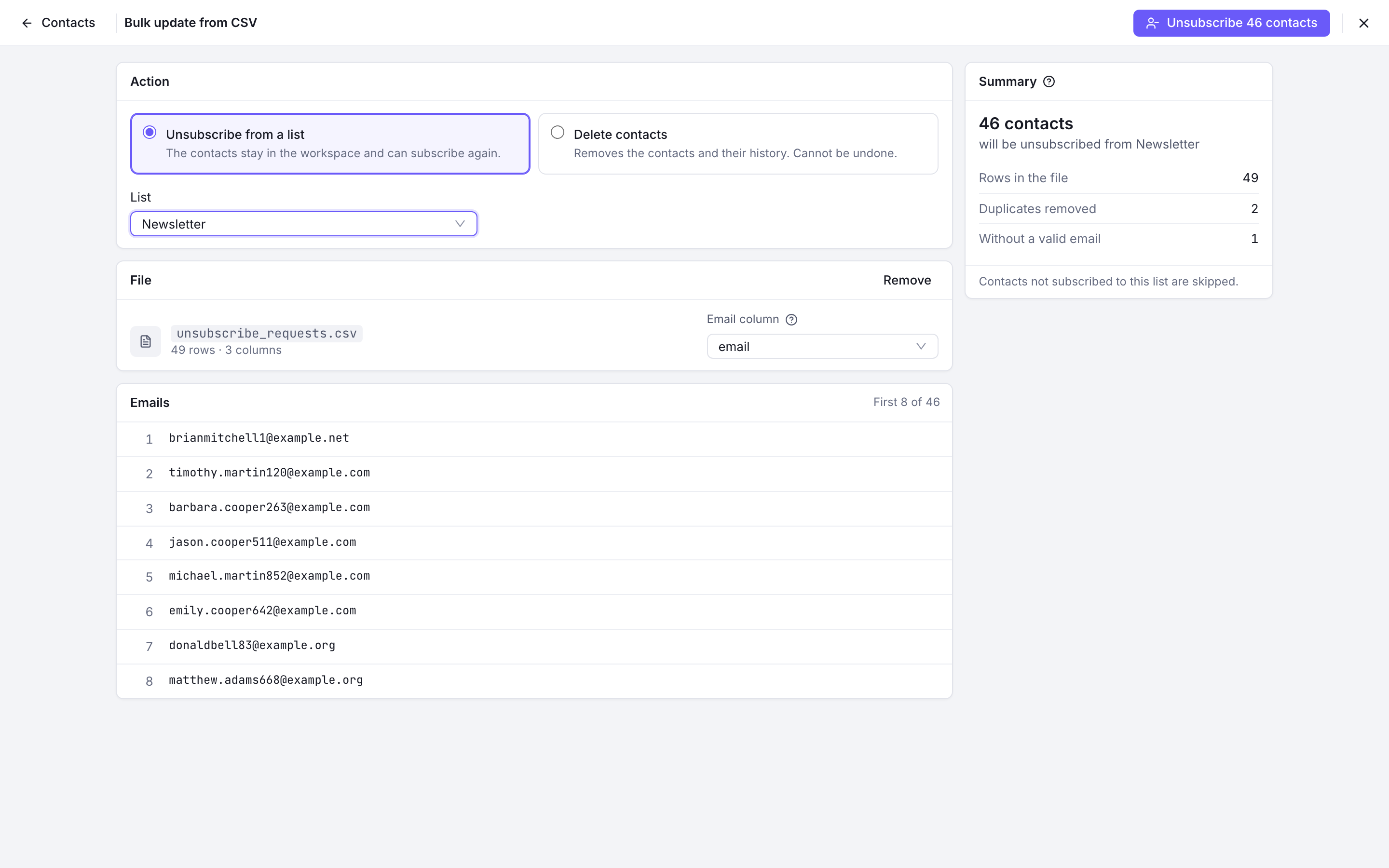
The column whose name contains “mail” is picked for you, and you can choose another one. Addresses are lowercased and each one is processed once; the summary counts the rows of the file, the duplicates removed and the rows without a valid address before anything starts.
The update runs in your browser, one contact at a time. The results list each address as done, skipped or failed, can be downloaded as a CSV, and the failed ones can be retried. A stopped update can be resumed from the same file.
Unsubscribing needs the Lists write permission as well as Contacts write; deleting needs Contacts write.
Permissions
Contact data answers to the Contacts permission:
- Read covers contact records and their full profiles, the contact timeline, and the custom events recorded against contacts. It is also required — alongside the matching Lists or Segments grant — to enumerate the addresses inside a list or a segment, and to set
ccorbccon a transactional send. - Write covers creating and updating contacts, deleting them, bulk-overwriting them through a CSV or API import, and recording custom events. Changing a contact’s subscription status on a list needs Lists write as well.
Write is not “can add contacts”: it deletes permanently, and it overwrites in bulk.
On the contact sheet, each part needs its own grant: Messages needs Message history read, Web visits needs Web analytics read (with web analytics on), and the lists and segments panels need Lists read and Segments read. Without Contacts write, its fields cannot be edited.
Three grants reach contact data without Contacts write, which is worth knowing before you hand any of them out:
- Lists write on its own creates or overwrites a complete contact record. Subscribing an address through
/api/lists.subscribewrites every field the request carries, and can subscribe someone to a list that is not public. - Automations write sends the complete contact record to any URL a webhook node names, and nothing checks permissions while an automation runs.
- Transactional write creates the recipient contact as part of sending. Without Contacts write, only the email address is stored and an existing contact is never modified — see Transactional API.
Key Features
- Flexible Schema: Predefined fields cover most use cases while custom fields provide extensibility
- Automatic Deduplication: Email-based upserts prevent duplicate contacts for the same email address
- Multi-List Support: Single contact can belong to multiple mailing lists
- Data Removal: Explicit null handling for field cleanup