Overview
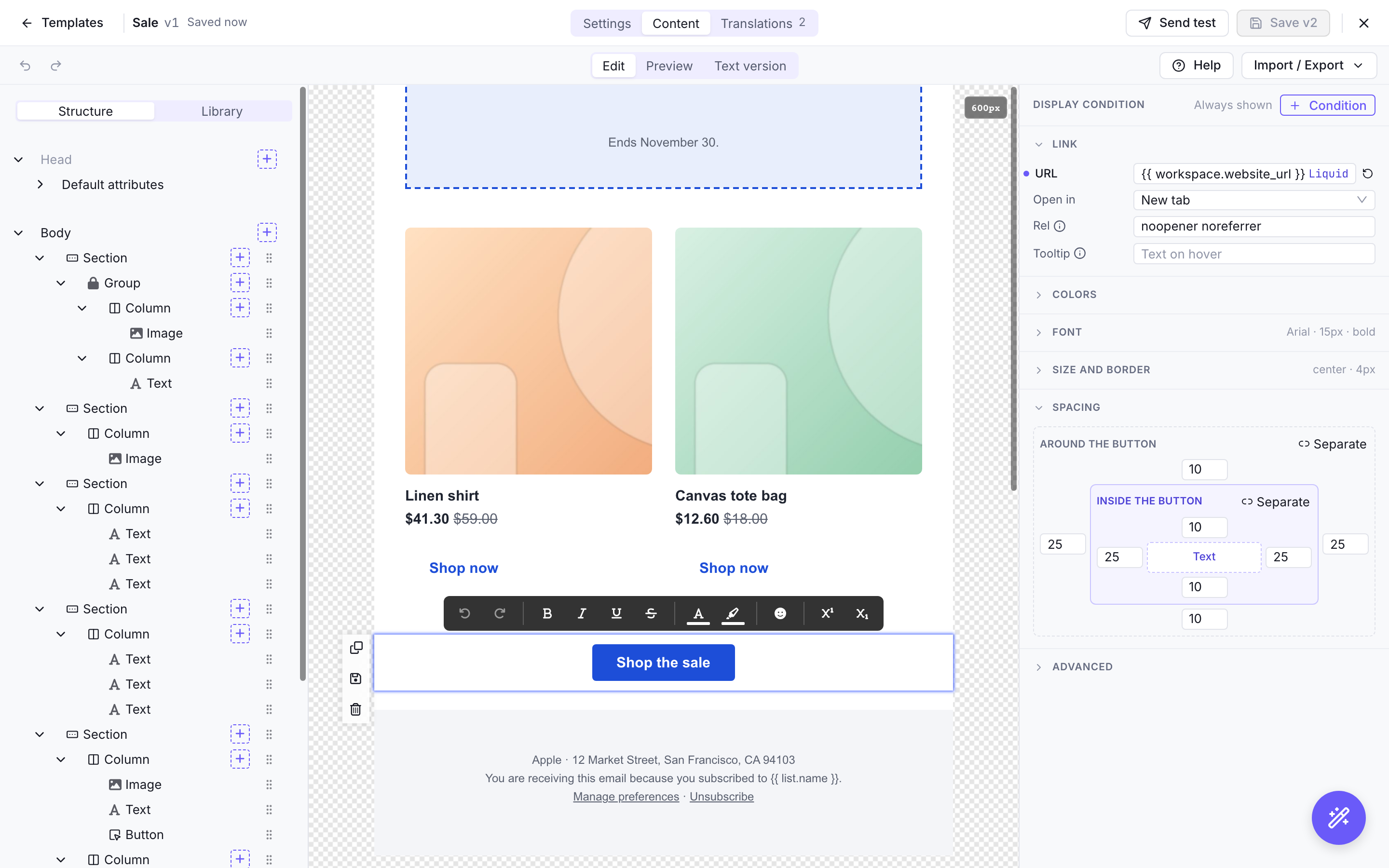
Email templates in Notifuse are built using a visual drag-and-drop editor that combines:
- MJML Framework: Guarantees full email client compatibility across all devices and email providers
- Liquid Templating: Dynamic content personalization using variables like
{{ contact.first_name }} - Version Control: Every template update creates a new version to track previously sent contents
- Multi-Purpose: Used by both broadcast campaigns and transactional notifications
Template Builder Features
- Drag-and-Drop Interface: Visual editor for easy template creation
- Responsive Design: Mobile-optimized layouts that work across all devices
- Pre-built Blocks: Headers, footers, buttons, images, and content sections
- Brand Consistency: Colors, fonts, logos, and styling options
- Real-time Preview: See exactly how your email will look before sending
Starting a new template
New template opens a window where you choose what the template starts from:
- Gallery: 15 ready-made emails, by use case: verification code, password reset, subscription confirmation, team invitation, payment receipt, order confirmation, order shipped, abandoned cart, sale, newsletter, product announcement, event invitation, welcome, win-back and unsubscribe confirmation. Click one to preview it on desktop or mobile, see its category, its subject and the variables a send has to provide, then Use this model.
- Your templates: a copy of one of your templates, which keeps its editor mode.
- Blank: a logo, a paragraph and the footer.
A gallery model is written in the workspace’s default language, with a translation for each of the workspace’s other languages the gallery is written in (English, French, Spanish, German, Catalan, Brazilian Portuguese, Japanese and Italian). Its name, category, subject, preview text and test data are filled in, with the workspace’s logo and name in place of the example ones when the workspace has them; choose the sender in Settings. Opened from a newsletter, a list or a transactional notification, the window only shows the models of the category they need.
The gallery’s images are placeholders served by your Notifuse instance, at https://<your API endpoint>/console/gallery/. Replace them with your own before sending: a recipient sees them only while your instance is reachable from the Internet at that address.
Editor modes
When you create a template, you choose how its email is written:
- Visual: the drag-and-drop editor, where blocks, styles and Liquid variables are edited in place.
- Code (MJML): you write the MJML yourself, with Liquid, in a code editor with a live preview.
The editor mode is set when the template is created and can’t be changed afterwards. To move a design to the other editor, create a new template in that mode and copy the content across with the Import / Export menu of each editor:
- Code to visual: in the code template, use Export MJML; in the new visual template, use Import → MJML with that file.
- Visual to code: in the visual template, use Export → MJML; in the new code template, use Import MJML with that file.
Check the preview after copying. The visual editor refuses MJML components it doesn’t support, and Liquid placed between blocks (for example a {% for %} loop around sections) is not kept when importing into it. In the other direction, write Liquid inside links with single quotes ({{ link | append: '?ref=mail' }}): double-quoted text there doesn’t survive the export.
The new template has its own ID. Point your broadcasts, transactional notifications and automations at it, then delete the old one.
Headings
Text blocks of the visual editor hold real headings, from Heading 1 to Heading 6, so that screen readers can list an email’s sections and jump between them (WCAG 2.2, success criterion 1.3.1). Choose the level of the line under the cursor in the text style menu at the start of the toolbar, or type # (or ## , ### …) at the start of a line. The canvas shows each heading’s level beside it; that mark is not part of the email.
Structure: a heading should be at most one level deeper than the heading before it, an H2 after an H1 rather than an H3. The editor never refuses a level, because moving or hiding a block can change the order afterwards, but it marks a level that skips one: next to the level in the menu, as a badge on the Text block, and in a Heading structure box above the preview, which reads the email as it is sent, the headings written by Liquid blocks included.
Look: the size, weight, line height and spacing of each level, and optionally its font and colour, are set once per template under Default attributes → Headings. They are written onto every heading of the email when it is sent, so that every mail client shows them. A heading takes the font and colour of its Text block unless its level sets its own.
The editor keeps these styles in an mj-style block of the template, added with the first heading. If you edit that block by hand, the Headings section shows a message and stops editing it. Templates that already held headings keep their look until you change Headings.
Saved blocks library
In the visual editor, the Library tab beside Structure holds the blocks saved in the workspace, shown as previews, newest first, with a search and a filter for sections and content blocks. Below them are the basic blocks: section, wrapper, text, image, button, divider, spacer, social, raw HTML and Liquid.
To add a block to the email:
- Insert: hover a saved block and click Insert, or click a basic block. It goes after the selected block, or at the end of the email when nothing is selected, and becomes the selected block. The confirmation offers to undo it. When the selection can’t take the block, its tooltip says what to select instead, such as a column for a text.
- Drag: drag a saved or basic block onto the email. A line shows where it will land, or a dashed box for an empty column or wrapper. Over a place that doesn’t take it, a label says why, such as “Goes inside a column” for a text dropped between sections. Hold the pointer near the top or bottom of the email to scroll it, and press Escape to cancel. Blocks are dragged onto the email only, not onto the structure tree.
To save a block, select it and use the save button in its toolbar. The dialog suggests a name from the block’s content, and can instead replace an existing saved block of the same type. Saved blocks can be used in every template of the workspace. A template that already contains a saved block keeps its own copy: replacing or deleting the saved block doesn’t change it. After a new block is saved, the library opens on it.
To manage a saved block, open the … menu on its card in the library. It shows in the editor opened from the Templates page, for members who can edit templates:
- Rename: type the new name, then press Enter, or Escape to keep the old one.
- Replace with the selected block: select a block of the same type in the email first.
- Duplicate: adds a copy, named after the block with “(copy)” at the end.
- Delete: removes it from the library for every template of the workspace.
Templates that already contain the block don’t change.
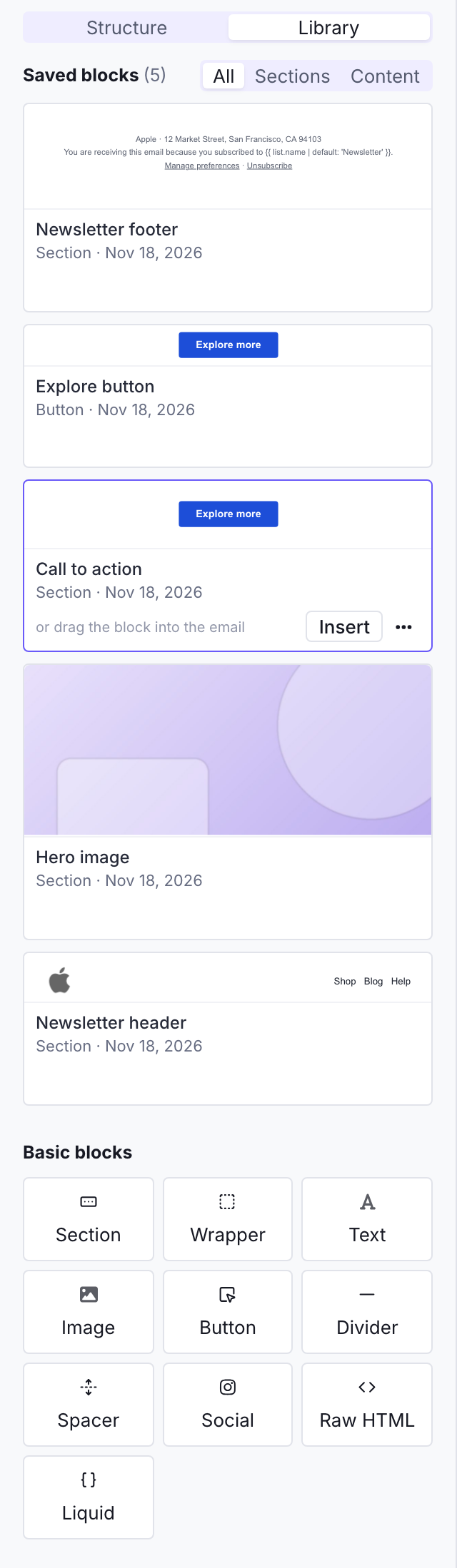
The + buttons of the structure tree also list every saved block in their Saved blocks tab. The blocks that can go at that place come first, with a preview when you hover them. The others are greyed under “Not available here”, with the reason, such as “Goes inside a column”. The + buttons open on the tab you used last.
Usage
Templates are used across Notifuse for:
- Broadcast Campaigns: Mass email campaigns sent to your contact lists
- Transactional Notifications: Automated emails triggered by user actions
- Double Opt-In Emails: Sent when anonymous contacts subscribe to lists
- Welcome Emails: Sent when contacts confirm their subsription to lists
- Unsubscribe Confirmations: Sent when contacts opt out
Deleting a template
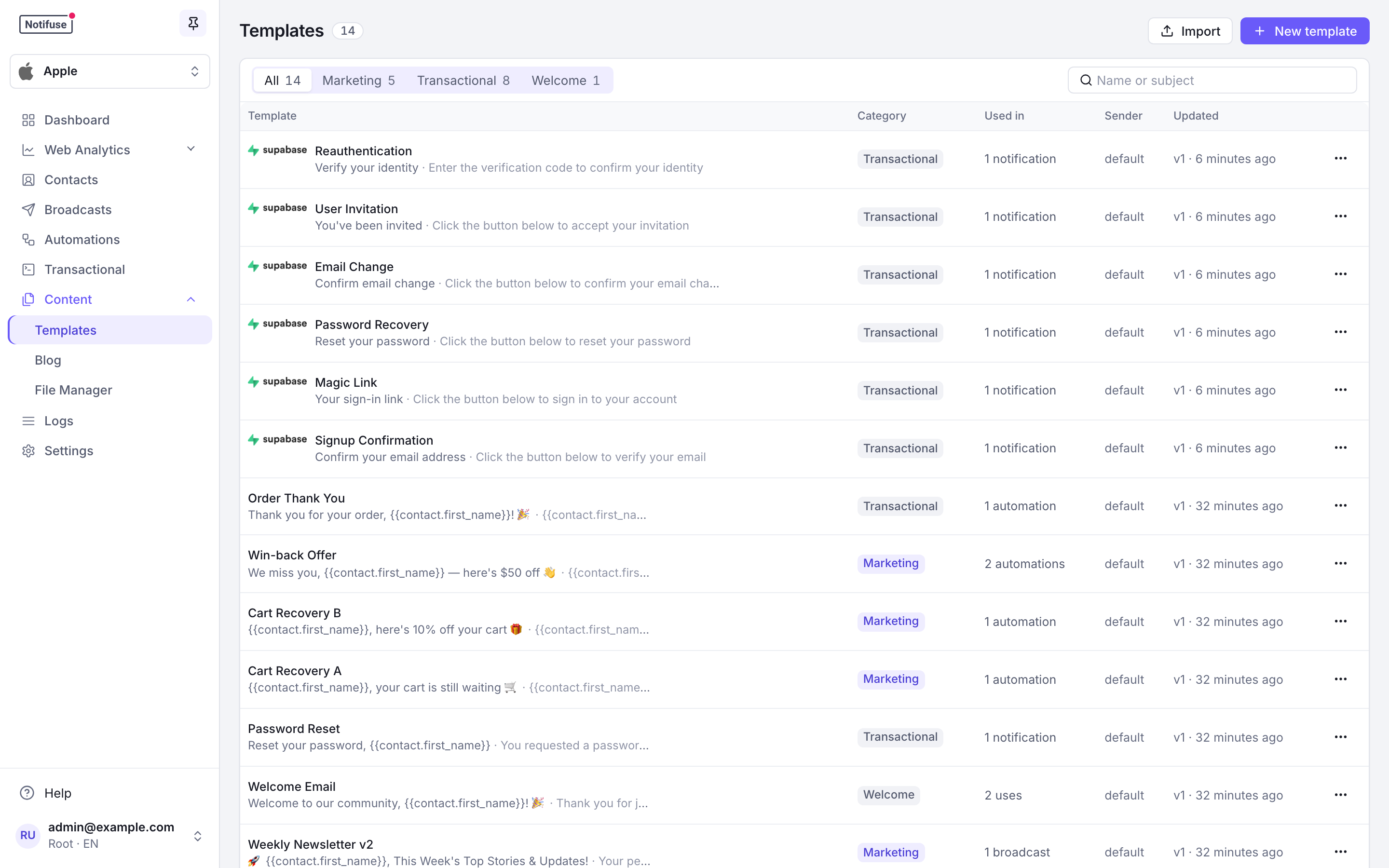
Deleting a template removes it from the template list and from every template picker, but Notifuse keeps it, with all its versions: messages already sent were rendered from them, and the message history and broadcast reports still display them.
Because of this, a deleted template keeps its ID. Creating a new template with the same ID is refused, and the API’s templates.update answers 404 for it. Give the new template another ID.
Deleting a template does take down the web versions of the emails sent with it.
Templates managed by an integration, such as the Supabase auth emails, can’t be deleted.
Plain-text version
Every email Notifuse sends carries two versions of its content: the HTML, and a plain-text version, generated from it unless you write your own. Mail clients that show text only, some watches and screen readers display the text version, and spam filters treat an email with both versions better than an HTML-only one.
By default, the text version is generated at every send from the final HTML, so there is nothing to write or keep up to date:
- headings and paragraphs keep their line breaks, lists become
- itemor1. item; - a link becomes its label followed by its URL in brackets, such as
Shop the sale (https://example.com/sale); a linked image uses itsalttext as label; - hidden content (the preview text of the inbox, elements styled
display:none) and tracking pixels are left out.
Its links are the links of the HTML, with the same click tracking and UTM parameters, decided for each recipient as for the HTML. A click from the text version counts like any other click. If your email provider rewrites links for its own click tracking (SendGrid, Mailgun or Postmark, when enabled on their side), it rewrites those of the text version too. An email whose HTML holds no text at all, such as a single image without alt, is sent as HTML only.
To see it before sending, open the Text version mode next to Edit and Preview in the visual editor, the Text version tab of the MJML editor, or the Text version tab of the template preview. They show the text built from your test data. Through the API, templates.compile returns it in the text field.
Write your own
The automatic version suits most emails. When you want different wording, such as a shorter text or one without the layout’s repeated links, choose Custom in the Text version mode (or the Text version tab of the MJML editor) and write the text yourself. It starts from the automatic version of the email, with its variables kept, so you edit rather than start from nothing.
- Liquid works as in the subject.
{{ contact.first_name }}, conditions and loops are rendered for each recipient. A literal{{must be wrapped in{% raw %}…{% endraw %}. The text is checked when you save: a Liquid syntax error, an{% include %}or{% render %}tag, or a text over 64 KB is refused with the reason. - Its links are sent as written. Links in a custom text get no click tracking and no UTM parameters. A marketing email’s text should keep
{{ unsubscribe_url }}, and a double opt-in email’s text{{ confirm_subscription_url }}; the editor reminds you, and warns on save when the link is missing. - It does not follow the email. A custom text is not updated when you change the HTML. Start again from the automatic version replaces it with a fresh starting point; choosing Automatic removes it.
- One text per language. The text you write in the main editor is for the default language. Each translation has its own, written from its editor in the Translations tab; a language without its own text receives the automatic version of its own HTML, never the default language’s text.
Note
The starting point keeps the Liquid written inside text blocks. It keeps the text of a conditional block but not its condition, and conditions and loops placed between blocks are often not carried over, depending on the layout. The editor warns when the starting point holds fewer Liquid tags than the email: check the text, and add what is missing by hand before saving. A custom text has no display conditions: the text of a conditional block goes to every recipient unless you wrap it in {% if %} yourself.
If a custom text cannot be rendered when the email is sent, the email goes out with the automatic version instead, and the template preview says why. Through the API, the custom text is the template’s email.text (and translations.<language>.email.text); templates.compile takes it as text and says in text_source whether the text returned is custom or auto.
Conditional blocks
A block of the visual editor can be sent only to some recipients: give it a display condition on the email’s data, such as “order.total is greater than 100” or “contact.custom_string_1 equals vip”. Recipients for whom the condition doesn’t hold receive the email without the block.
Select a block, then use + Condition in the Display condition strip at the top of its settings. A condition is a list of rules, each made of a variable, an operator and, for most operators, a value. Choose whether all the rules must hold or at least one; a condition holds up to 20 rules.
Conditions can be set on sections, wrappers, text, images, buttons, dividers, spacers, social blocks and raw HTML blocks. A condition on a section or a wrapper hides everything inside it. Columns and groups can’t have one, since removing a column would break the widths of the others; put the condition on the section, or on the blocks inside the column. Nor can a block that holds a Liquid block: hiding it would remove the Liquid block too, which may hold half of a tag such as {% if %} whose {% endif %} sits elsewhere. Move the Liquid block out first; for the same reason, the editor doesn’t let you put a Liquid block inside a block that has a condition.
Variables
A variable is a path without braces, as you would write it inside {{ }}: contact.first_name, order.total, order.items.size. .empty and .to_liquid can’t be used in a path; to test an empty list or text, use is false or empty. Every variable of the email’s data is available: contact fields, the data of a transactional API call, data feeds. Variables assigned with Liquid inside the email (an {% assign %} in a Liquid or raw block) are not: a condition reads the data the email is sent with, not the content of the email.
Operators
| Operator | Holds when the variable |
|---|---|
| is true | is true, or the text true |
| is false or empty | is false, empty, made of spaces only, or absent |
| is set / is not set | has a value, or has none: absent, null, an empty text or list, an empty object, or a text made of spaces only (false and 0 are set) |
| equals / does not equal | is the text of the value, exactly: vip doesn’t equal VIP |
| contains / does not contain | for a text, contains the value; for a list, has an element equal to the value; for an object, has a field of that name; a number or a boolean contains nothing |
| is greater than, is greater than or equal to, is less than, is less than or equal to | is a number, or a text that is one ("150"), compared with the value |
Some details:
- Absent variables: a rule on a variable missing from the data is false, except is false or empty, is not set, does not equal and does not contain, which hold.
- Numbers and booleans: equals
100also matches the number100, and equalstruematches the booleantrue. The comparisons (is greater than and the others) need a number of at most 15 digits before the decimal point as value; a variable that isn’t a number makes them false. - Text values are free: any character works, apart from the Liquid delimiters
{{,}},{%and%}.
Checking a condition
The condition editor shows, for each rule and for the whole condition, its result with the template’s test data, and warns when a variable is missing from that data. The preview hides the blocks your test data would hide and says how many. In the layer tree and on the canvas, an icon marks the blocks that have a condition.
Translations and exports
Each translation has its own content, so its own conditions: set them in the translation too. Reset translation copies the conditions of the default content along with it.
Export → MJML writes each condition as Liquid around its block, so a code template made from the export sends the same blocks, with one difference: in the code template, the condition also sees the variables the email’s own Liquid assigns, such as an {% assign %} in a Liquid block or the variable of a {% for %} loop around the block. Importing that file back into the visual editor drops the conditions: the editor warns you, and the blocks are then sent to every recipient until you add their conditions again.
A code template’s MJML goes through Liquid as a whole, and Liquid takes at most 100 KB (102,400 bytes) at a time. Each exported condition adds its Liquid around its block, from a few hundred to a few thousand characters depending on its rules, so an email with many conditions can go over the limit once exported, and its code template then fails to compile. Keep such an email in the visual editor, where conditions don’t count toward the limit.
Through the API, a block of visual_editor_tree carries its condition as display_condition:
{
  "type": "mj-section",
  "display_condition": {
    "match": "all",
    "rules": [
      { "variable": "order.has_image", "operator": "is_true" },
      { "variable": "order.total", "operator": "gt", "value": "100" }
    ]
  },
  "children": []
}
The operators are is_true, is_blank, is_present, is_absent, eq, neq, contains, not_contains, gt, gte, lt and lte, and match is all or any. A condition on a block that can’t have one, or an invalid condition, is refused with a 400.
Translations
A template can carry one version of its content per language. Which version a contact receives is decided at send time from the contact’s language field, so one broadcast or one transactional notification serves every language you have written — nothing to branch on in your automations or your API calls.
Enabling languages in the workspace
Translations are only offered for languages the workspace has switched on. Open Settings → General, panel Language & timezone:
- Supported languages — the languages this workspace works in. Add every language you intend to write templates for; a language that is not listed here cannot be given a translation.
- Default language — the language a template’s main content is written in, and the version a contact receives when nothing better matches. Every workspace has exactly one.
Language codes are two-letter ISO codes such as en, fr, de, es. The default language must be one of the supported languages, and the list must contain at least one.
Note
With a single supported language the template editor shows no translation controls at all. The Translations tab appears as soon as the workspace supports more than one language.
Writing a translation
When creating or editing a template, the editor has a tab per stage: Template, in the workspace’s default language, and Translations, listing each other supported language. Open a language to write its version: its own subject, preview text and body, with the same visual editor, MJML code mode and Liquid variables as the default. The sender and reply-to are set once, on the template: every translation is sent from the template’s sender, with its reply-to. Reset translation copies the default-language content into the translation as a starting point, replacing whatever was there.
A language that has no translation is simply skipped at send time — you do not have to translate a template into every supported language at once.
Which version a contact receives
At send time Notifuse reads the contact’s language:
- If it is empty, or equals the workspace’s default language, the contact receives the default content.
- If the template has a translation for that language, the contact receives that translation.
- Otherwise the contact receives the default content.
So the default content is always the fallback, and a translation is only ever an improvement over it, never a gap. Set a contact’s language on import, through the API (language on contacts.upsert), or from a subscription form; see Contacts.
To check a specific language before sending, the template preview and the test-send dialog both have a Language selector.
Note
Self-hosted: adding a language to a template, or editing the content of an existing translation, needs a licence key. Translations already saved keep being sent in every licence state, editing the rest of a template that carries them is never refused, and removing a translation is always allowed. Notifuse Cloud includes template translations from the Starter plan up (details, including instances still on their earlier terms).
Liquid Syntax
Notifuse uses Liquid templating to insert dynamic content into your emails. Variables are enclosed in double curly braces and automatically replaced with actual data when emails are sent.
Note
Liquid is evaluated in the template you write, not in your data. A value coming from a contact field, a data feed or an API call is inserted as text: if it happens to contain {{ ... }} or {% ... %}, that text is shown as-is, not run as Liquid. Put merge tags in the template; feed the data plain values.
HTML in your data is escaped
In the HTML of an email, every output ({{ }}, echo and cycle) is escaped: a value is shown as the text it holds, never read as HTML. A contact who types <a href="https://example.com"> as their first name sees those characters in the email, not a link. The subject and the text version are not HTML, so they are not escaped.
When a value is HTML on purpose, such as a data feed that returns a block of HTML, write it with the raw filter:
{{ global_feed.article_html | raw }}Use raw only for data you control. On a contact field, or anything a form or an API caller can fill in, it lets that value add links and markup to your email.
Some outputs are not escaped a second time:
- Already escaped:
{{ name | escape }}is escaped once, also whennewline_to_br,striportruncatefollow it.{{ bio | escape | newline_to_br }}keeps its line breaks. - Captured HTML: the text of a
{% capture %}is written as it is: its own outputs were escaped when it was captured, and the rest is your template’s markup.
Escaping is for HTML text and attributes:
- CSS and scripts: a value written into CSS (
mj-style, a<style>element) or a script needsraw, and must come from data you trust, such as your brand settings, never from contacts. - Quoted attributes: an output inside an attribute value is safe only within quotes. Write
class="{{ value }}", notclass={{ value }}.
A Liquid error stops the email
When Liquid cannot evaluate part of an email, the email is not sent: the send fails with the error, and the preview and the test send show it, so you can fix the template before it reaches anyone. This applies to the HTML, the subject and the text version. Before, the email went out with a Liquid error: ... text in it.
The usual causes are:
- A text compared with a number:
{% if contact.custom_string_1 >= 10 %}fails when the field holds"12"(comparison of String with 10 failed). Compare a number field, or compare with a quoted text:{% if contact.custom_string_1 == "12" %}. - An unknown operator:
{% if x = 1 %}fails (Unknown operator =). Write==. - A filter that fails:
{{ order.total | divided_by: order.count }}fails whenorder.countis 0 (divided by 0), and so does a filter missing an argument, such as{{ contact.first_name | replace }}(wrong number of arguments). Guard the value:{% if order.count > 0 %}{{ order.total | divided_by: order.count }}{% endif %}.
Through the API, transactional.send and broadcasts.sendToIndividual answer such a send with a 422 whose error is the Liquid error.
A missing field is not an error: {{ contact.first_name }} shows nothing when it is empty, and {% if order.total > 50 %} is false when there is no order. Conditional blocks never cause an error. In blog themes, an error is still shown in the page.
Contact Variables
The contact object contains the full contact profile with all stored information. Access any contact field for personalization:
Hello {{ contact.first_name }}!

Your account email: {{ contact.email }}
Full name: {{ contact.first_name }} {{ contact.last_name }}
Output Example:
Hello John!

Your account email: john.doe@example.com
Full name: John Doe
List Variables
Reference the mailing list information:
You're subscribed to: {{ list.name }}
List ID: {{ list.id }}
Output Example:
You're subscribed to: Newsletter
List ID: newsletter
System URLs
Use pre-generated URLs for common actions:
Unsubscribe Link
<a href="{{ unsubscribe_url }}">Unsubscribe from this list</a>Opening this link unsubscribes the contact from the list right away and shows the notification center. Mail clients can also show their own Unsubscribe button, from the List-Unsubscribe header that Notifuse adds to every email sent to a list, except broadcasts that also go to the list’s unsubscribed contacts.
To check these links and the header before sending, choose a Mailing list when you send a test email. A test sent from a broadcast has the broadcast’s list already chosen. The test then carries that list’s links and, as the broadcast will, the List-Unsubscribe header, and they work: unsubscribing or confirming from the test, or a bounce or complaint reported on it, changes the test recipient’s subscription to the list. The Mailing list field is not offered for transactional notifications, whose real sends carry no list links. Without a list, the test’s unsubscribe links lead to no real list and it has no List-Unsubscribe header.
Subscription Confirmation
<a href="{{ confirm_subscription_url }}">Confirm your subscription</a>Notification Center
<a href="{{ notification_center_url }}">Manage your preferences</a>Email Tracking Preferences
<a href="{{ tracking_preferences_url }}">Choose what we track</a>
<a href="{{ tracking_optout_url }}">Stop tracking my opens and clicks</a>
The first opens the email tracking dialog of the notification center; the second asks the contact to confirm in that dialog, then refuses open and click tracking. See Email Tracking.
View in Browser
{% if view_in_browser_url != blank %}
  <a href="{{ view_in_browser_url }}">View this email in your browser</a>
{% endif %}
The link opens the web version of the email, for recipients whose mail client renders it badly. In the visual builder, select some text, open the link editor and choose the Web version of the email link type.
- Available in broadcasts and automations. Transactional and double opt-in emails leave the variable empty, unless a transactional API call sets
view_in_browser_urlin its own data. Guard the link as above in a template shared with them. - Only where it is used. Only emails whose template uses the variable have a web version. There is no workspace setting.
- The email as it was sent. The page is rendered from the template version and the data of that send, in the contact’s language. Editing the template later does not change it.
- Nothing is tracked on the page. Viewing it records no open, and its links record no click; they keep the UTM parameters of the send. With click tracking on, the click on the link in the email itself counts as a click, like any other link.
- Taken down with the template or the contact. Deleting the template or deleting the contact makes the page answer “This email is no longer available”.
Anyone who has the link can open the page, as with a forwarded email. It shows what the email shows, including the contact’s unsubscribe and notification center links, so whoever holds it can unsubscribe that contact. Each email’s web version opens at most 30 times a minute: it is not meant as a public archive link.
The link signs the domain it was sent with, your workspace’s Custom Endpoint URL or the API_ENDPOINT address, and the page opens there and on the API_ENDPOINT address only. This keeps another workspace’s custom domain from showing your email under its own address. What it does not cover:
- The
API_ENDPOINTaddress opens the web version of every workspace, since every link can fall back to it. - Workspaces that already shared a custom domain before 44.0 show each other’s web versions on it.
- Anyone who has the link can fetch the page and publish a copy elsewhere, as with any email they receive.
- A custom domain is checked to point to Notifuse, not to belong to the workspace that saves it. The workspace that saves a domain first holds it; see Custom Endpoint URL.
After your workspace changes its custom domain, links sent with the old one keep working while the old domain still points to Notifuse, until another workspace takes it; they stop within a few minutes of that. A redirect from the old domain keeps them working only if it goes to the API_ENDPOINT address, not to the new custom domain.
Behind a reverse proxy, forward the original Host header, or set X-Forwarded-Host to it: when that header is present, the page is judged on it alone. A proxy that replaces Host with its upstream address, such as notifuse:8080, makes every web version answer “This email is no longer available”. One that replaces it with the API_ENDPOINT host turns the rule off: every custom domain then shows every workspace’s web versions.
The page runs no script and is kept apart from the console, although both are served from the same domain.
In a template preview and in a test email, the link opens a page saying that the web version exists once the email is sent to a contact.
Note
Web versions are served under /v/. On a blog served from a custom domain, a category whose slug is v cannot be reached: give it another slug.
Automation Variables
An email sent by an automation also receives:
{{ automation_id }}and{{ automation_name }}{{ trigger_event }}: the event that started the journey.{{ trigger_event.kind }}is its kind (custom_event.cart_abandoned,list.subscribed,email.link_clicked…) and{{ trigger_event.occurred_at }}when it happened. For a custom event,{{ trigger_event.name }},{{ trigger_event.external_id }}and its properties,{{ trigger_event.properties.<key> }}.
{% if trigger_event.properties.items %}
  {% for item in trigger_event.properties.items %}
    {{ item.name }} × {{ item.quantity }}: {{ item.price }}
  {% endfor %}
{% endif %}
A journey that started before version 44 has no trigger_event: guard it with {% if %}.
Complete Example
Welcome {{ contact.first_name }}!

Thank you for subscribing to {{ list.name }}. We're excited to have you on board!

Your registered email: {{ contact.email }}

Manage Preferences: {{ notification_center_url }}

Don't want to receive these emails?
Unsubscribe here: {{ unsubscribe_url }}
Available Data Structure
When designing templates, you have access to this data structure:
{
  "contact": {
    "first_name": "John",
    "last_name": "Doe",
    "email": "john.doe@example.com"
  },
  "list": {
    "id": "newsletter",
    "name": "Newsletter"
  },
  "unsubscribe_url": "https://your_notifuse_endpoint.your_website.com/notification-center?action=unsubscribe&email=john.doe@example.com&lid=newsletter&lname=Newsletter&wid=workspace123&mid=msg_123&email_hmac=abc123",
  "confirm_subscription_url": "https://your_notifuse_endpoint.your_website.com/notification-center?action=confirm&email=john.doe@example.com&lid=newsletter&lname=Newsletter&wid=workspace123&mid=msg_123&email_hmac=abc123",
  "notification_center_url": "https://your_notifuse_endpoint.your_website.com/notification-center?email=john.doe@example.com&email_hmac=abc123&wid=workspace123",
  "tracking_preferences_url": "https://your_notifuse_endpoint.your_website.com/notification-center?action=tracking&email=john.doe@example.com&email_hmac=abc123&wid=workspace123",
  "tracking_optout_url": "https://your_notifuse_endpoint.your_website.com/notification-center?action=tracking_optout&email=john.doe@example.com&email_hmac=abc123&wid=workspace123",
  "view_in_browser_url": "https://your_notifuse_endpoint.your_website.com/v/ODkyY2Q..."
}
Differences from Shopify Liquid
Notifuse renders Liquid with liquidgo, which follows Shopify Liquid 5.11. A few behaviours differ on purpose, because your data comes from JSON and your emails are read by people:
- Empty text is false:
{% if contact.first_name %}skips a contact whose first name is empty. In Shopify Liquid, onlynilandfalseare false. - Numbers from your data are decimals: with
order.totalset to1999,{{ order.total | plus: 1 }}shows2000(not2000.0), and{{ order.total | divided_by: 100 }}keeps the decimals and shows19.99. Add| floorto keep the whole part. - In a blog theme, a filter error shows nothing:
{{ 1 | divided_by: 0 }}, an invalidbase64_decodeor a filter given too many arguments show nothing, instead ofLiquid error: .... In an email, it stops the email (see A Liquid error stops the email). - Lists show with brackets:
{{ contact.custom_json_1.tags }}shows["vip", "early"]. Use{{ contact.custom_json_1.tags | join: ", " }}to list them. datereads a date written without a time zone as UTC, and a number as a Unix timestamp.
In blog themes, which are the only templates with partials, {% render %} takes a quoted template name as in Shopify Liquid 5.11 ({% render 'footer' %}); emails refuse it. {% snippet %} is not supported.